
Blogging resources are the tools, templates, communities, and services that help you plan, write, publish, and grow a blog.
A content management system gets your words online, but it will not research keywords for you, fix your grammar, shrink a giant hero image, or keep your publishing calendar honest.
That gap is exactly why sharp bloggers build a small kit of resources for a blog instead of asking one platform to do every job at once.
Blogging Platforms and Web Hosting Resources
Your platform and host form the foundation of the whole site, so this is where money and time deserve early attention. A platform controls how you write and design.
A host controls how fast and reliable your pages feel to visitors.
| Resource | Best for | Why bloggers pick it | Watch out for |
| WordPress (.org) | Full control and long-term growth | Open source, thousands of free plugins and themes | You manage hosting, updates, and security yourself |
| Ghost | Writers who also sell memberships | Clean writing focus, built-in newsletters and paid subscriptions | Fewer plugins than WordPress |
| Blogger | Casual, no-cost personal blogs | Free, tied to your Google account, dead simple | Limited design and ownership control |
| Hostinger | Budget-friendly beginner hosting | Low starter prices, easy WordPress setup | Renewal rates climb after the first term |
| SiteGround | Reliability and support | Strong uptime and helpful chat support | Pricier than budget hosts |
| Cloudways | Growing blogs that outgrow shared hosting | Managed cloud hosting on providers like DigitalOcean and AWS | Steeper learning curve for total beginners |
WordPress stays the default choice for good reason. As of August 2026, WordPress powers about 43% of all websites, far ahead of the next platform, Shopify, at 5.3%. That scale means help, tutorials, and plugins for almost any problem you hit.
Ghost suits writers who want a calm editor and a built-in way to charge readers, without bolting on extra plugins. Blogger works if you just want to post and do not care about owning the tech.
On the hosting side, Hostinger is a friendly first step for tight budgets, while SiteGround trades a higher bill for steadier performance and support. When traffic grows past what shared hosting handles, Cloudways becomes a smart middle ground.
Knowledge Pill: DigitalOcean bought Cloudways in 2022, yet the platform still runs under its own brand and supports multiple cloud providers. That flexibility lets you scale up without moving hosts every year.
Best Blogging Tools for Content Creation
This is the heart of your toolkit, because writing and editing eat most of your hours. The right blogging tools here turn a blank page into a polished, readable post much faster. Below, the tools are split by the job they do, so you can pick one from each row and build a full writing stack.
1) AI Writing Assistants
These help you beat the blank page, draft outlines, and fix up clunky sections. I lean on all four daily, but I never hit publish on raw output (more on why in a second).
- ChatGPT (Free & Paid): My all-rounder for drafting, brainstorming, editing, light coding, and quick research. It’s one of the world’s most widely used AI tools for writing and research, according to recent ChatGPT statistics.
- Claude (Free & Paid): I reach for Claude when I need long-form writing, document summaries, or careful analysis. It's my pick for thoughtful first drafts that don't read like a robot wrote them.
- Jasper (Paid): Made for marketing teams, with ready-to-go templates for blog posts, ads, emails, and product descriptions that keep your brand voice steady.
- Copy.ai (Free & Paid): My choice for marketing copy, sales outreach, and social posts. I've used it plenty when I need snappy short-form content in a hurry.
Use these to speed up first drafts, not to publish raw output. Readers and search engines both reward writing that sounds human and adds real thought.
2) Grammar and Proofreading
These catch the mistakes your tired eyes miss at midnight. I've published enough typo-ridden posts at 2 a.m. to know you need a second set of eyes, even a digital one.
- Grammarly (Basic Free): My first line of defense. It flags spelling, grammar, tone, and clarity right as you type, so I fix things before they ever hit the draft.
- ProWritingAid (Basic Free): I run this when I want to dig deeper. It goes past basic grammar into style, pacing, and those words you accidentally repeat six times in one paragraph.
- LanguageTool (Free): A solid free pick I keep around for its strong multi-language support, handy if you write in more than one language.
3) Readability
These make sure your writing doesn't read like a legal contract nobody signed on purpose.
- Hemingway Editor (Free & Paid): I paste my drafts in here to catch long, winding sentences and passive voice. It nudges you toward plain, punchy prose and scores your text at a reading level, so you can aim for that sweet grade 8 to 11 range where most readers feel at home.
I don't follow every suggestion it makes, since a little personality beats a perfect score. But when a sentence lights up red, that's usually my cue to break it in two.
4) Topic research
These show you what people actually want to read, instead of what you think they want to read (two very different things, as my early flops taught me).
- AnswerThePublic (Free & Paid): I feed it a seed keyword and it spits out a visual map of the questions, comparisons, and related searches people type into Google. The free version caps your daily searches, while paid plans open up more features.
- AlsoAsked (Free Trial & Paid): My go-to for mapping Google's "People Also Ask" questions. It helps me uncover related search intent and fresh article ideas. Most of what you'll want sits behind a paid plan once the trial runs out.
- Google Trends (Free): I check this to see how search interest shifts over time, and to compare topics, regions, and seasonal swings using Google's own search data. Free and quietly one of the most useful tools on this list.
- BuzzSumo (Free Trial & Paid): I use it to find the most shared content on a topic, spot trending articles, and see what's actually pulling engagement. Full features need a paid plan.
5) Plagiarism Checking
These protect your credibility and your rankings, both of which take years to build and about five minutes to torch.
- Copyscape (Paid): I run published pages through Copyscape to catch duplicate text, and it's the tool most people trust for spotting plagiarism. It mainly works by scanning URLs, with premium options if you'd rather check text you paste or upload.
- Quetext (Free & Paid): My pick when I want to scan a draft before it goes live. It uses DeepSearch technology to flag possible plagiarism. The free version handles basic checks, while the Pro plan gives you deeper scans, citation help, and higher usage limits.
I check anything a new writer sends me before it touches my site. One copied paragraph can drag down trust with both readers and Google, so this quick step is cheap insurance.
6) Optimization Helpers
These blend writing with on-page SEO, so your best work actually gets found instead of gathering dust on page nine of Google.
- Surfer SEO (Paid): I use Surfer to line my draft up against the top-ranking pages for a keyword. It recommends the terms, headings, and content structure I might be missing, all based on what's already winning in search. It's saved me from publishing thin posts more than once.
- Frase (Paid): My tool for building content briefs fast. It reads the top search results and suggests the topics, questions, and terms that match what searchers are really after, so my outline starts on the right foot.
I don't treat either one as gospel. They point you toward what's working, but you still bring the judgment and the human voice. Stuff a page to hit every score and you'll write for robots, not readers.
Blogging Resources for SEO and Keyword Research
SEO and keyword research sit right at the top of the blogging resources that matter, no matter how good or helpful your blog is.
If your content isn't SEO friendly, meaning it doesn't target the keywords people actually search for, it won't earn eyeballs on the SERP. Here are the resources I lean on to pull traffic to a blog.
Here are the blogging resources or tools you will need to get traffic on your blog.
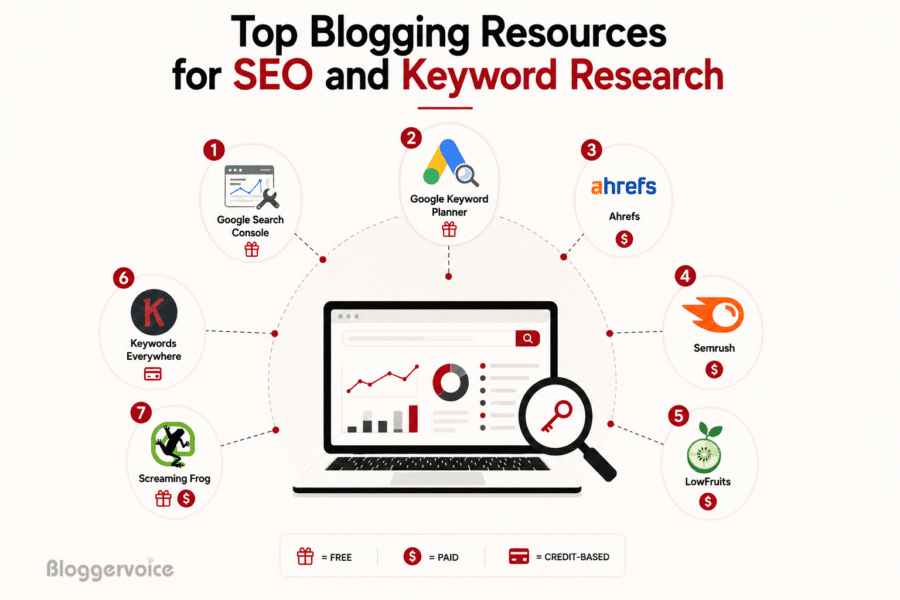
1) Google Search Console (FREE)
I set this up on day one for every site I own. It's free, it shows which queries already send you clicks, and it flags indexing or mobile problems straight from Google's mouth. No excuse to skip it.
2) Google Keyword Planner (FREE)
I use this for quick, free volume estimates when I'm sketching out a content plan. Keep in mind it's built for ads, so treat the ranges as rough guides rather than gospel.
3) Ahrefs (Paid)
Like the sample stack, Ahrefs is my daily driver once a site gets serious. I reach for it when I want deep backlink data and a full picture of what my competitors rank for. It's a pro-grade platform, and the price matches.
4) Semrush (Paid)
I turn to Semrush when I want an all-in-one marketing suite that covers keywords, ads, and content audits in one dashboard. Same as Ahrefs, it pays off most for people who log in often.
5) LowFruits (Paid)
This is my pick for hunting beginner-friendly, low-competition keywords. LowFruits studies real search results to spot terms where low-authority sites already rank, and it was acquired by AIOSEO in May 2024. That makes it a favorite for new blogs with little authority behind them.
6) Keywords Everywhere (Paid Credit-based)
I keep this on as a cheap sidekick. It shows credit-based volume and cost data right inside my browser as I search. It won't replace a full suite, but for a few bucks it earns its spot.
7) Screaming Frog (Free & Paid)
I run this to crawl my own site and catch broken links, missing titles, and duplicate pages before they hurt me. The free tier handles small blogs fine, while bigger sites need the paid license.
A simple rule: free tools (Search Console, Keyword Planner, Keywords Everywhere) are plenty when you start. Graduate to Ahrefs or Semrush only when traffic and revenue justify the cost.
Blogging Resources for Design and Visual Content
Words carry the message, but images keep readers scrolling. These design resources help you make posts look sharp without hiring a designer, and each one slots neatly into a publishing routine.
1) Canva (Free & Paid)
I build featured images, Pinterest pins, and social graphics here from ready-made templates. It's my go-to for non-designers who want fast, clean results without a steep learning curve.
I also design simple infographics in Canva and share them on infographic submission sites for extra reach and backlinks.
2) Figma (Free & Paid)
When I want more control than templates give me, I design custom graphics or plan page layouts in Figma. It gets handy once your brand grows past the basics.
3) Photopea (Free)
A free, browser-based editor that works a lot like Photoshop. I recommend it for quick edits when you don't own paid software and don't feel like paying for it.
4) TinyPNG (Free & Paid)
I squeeze image file sizes here before upload, so my pages load quickly and score better on speed tests. Your readers hate waiting, and so does Google.
5) Remove.bg (Free & Paid)
I use this to strip backgrounds from product shots or portraits in one click. It's perfect for clean feature images without fussing around in a photo editor.
6) Icon and Stock Libraries (Mostly Free)
I grab free visuals from Unsplash and Pexels for photos, Flaticon and The Noun Project for icons, and Freepik for illustrations. Plenty of quality here without ever opening my wallet.
A smooth visual routine looks like this: pick a free photo, tidy it in Canva or Photopea, drop the background with Remove.bg if needed, then shrink it with TinyPNG before it ever touches your blog. Fast pages and tidy images help both readers and rankings.
Blogger Resources For Productivity and Workflow
Publishing often comes down to systems more than willpower. These resources for blog productivity keep my ideas, drafts, and deadlines in one place so nothing slips through the cracks (and trust me, things slip when you're juggling a dozen posts).
- Notion (Free & Paid): My all-in-one workspace for the content calendar, idea backlog, research notes, and post outlines. I know plenty of solo bloggers who run their whole operation from a single Notion dashboard, and the growing number of Notion users shows how popular it has become for content planning.
- Trello (Free & Paid): A visual board I use to move each post through stages like idea, draft, editing, and published. It's great if you think in cards and columns like I do.
- Google Workspace (Free & Paid): Docs for drafting, Sheets for planning, and Drive for storage, all shareable with editors or clients in seconds. I share drafts with my writers this way daily.
- Asana (Free & Paid): Heavier project management I'd add only when a team is juggling many posts at once. Overkill for a one-person blog, worth it for a crew.
- Todoist (Free & Paid): A clean task app I use to capture to-dos before they escape my memory, which happens more often than I'd like to admit.
- Google Calendar (Free): The simplest editorial calendar there is. I block writing time and set publish dates right on it, no fancy tool needed..
The goal is not to collect apps. It is to build one repeatable path from idea to published post. Pick a planning home (say Notion or Trello), a writing home (Google Docs), and a calendar, then stop shopping and start shipping.
Learning Resources for Bloggers
Tools change, but skill compounds. These blogger resources help you keep improving long after you publish your first post. Most competitors skip this shelf entirely, so treat it as a quiet advantage while they're busy chasing the next shiny plugin.
- Blogs and websites: I follow Backlinko, the Ahrefs Blog, and Search Engine Journal for practical SEO and content advice backed by real data, not hunches.
- YouTube channels: I point new writers to Income School, the Ahrefs channel, and Neil Patel. They walk through real tactics on video, which suits visual learners better than a wall of text.
- Podcasts: Shows about blogging and online business let me learn during commutes, walks, or washing dishes. Free education while your hands are busy.
- Newsletters: Free email courses and roundups drip fresh tips into your inbox without any extra effort from you. I skim a handful every week.
- Online courses: Platforms like Coursera, Udemy, and Skillshare offer structured lessons on writing, SEO, and email marketing when you want to go deep on one skill.
- Communities: I swap wins and headaches with peers on Reddit (subreddits like r/Blogging and r/SEO), niche Facebook groups, and Indie Hackers. Sometimes one comment saves you months of trial and error.
Pick one or two sources and follow them consistently. Chasing every guru at once leads to overwhelm, not results. Steady learning beats a binge you forget by Monday.
Security Resources to Protect Your Blog
A hacked blog can wipe out months of writing in one bad morning, so security tools belong in every serious blogger's kit.
WordPress sites face an automated security attack roughly every 32 minutes on average, which makes "nobody would bother with my small blog" wishful thinking.
The upside is that strong protection comes mostly from free blog resources set up correctly. These security tools sit among the most important ones you will ever install.
Firewalls and malware scanners block bad traffic and catch infected files.
- Wordfence (Free & Paid): One of the most popular WordPress security plugins, and the one I install first. It gives you a firewall, malware scanner, login security, and brute-force protection. The free version covers strong core protection, while Wordfence Premium adds real-time firewall and malware signature updates, country blocking, and premium support.
- Sucuri (Free Plugin & Paid Service): I use the free plugin for monitoring, file integrity checks, and basic hardening. The paid plans step it up with a cloud-based website firewall (WAF), malware removal, hack cleanup, and DDoS mitigation. Worth it once a site earns real money.
- MalCare (Free & Paid): My pick when I don't want scans dragging down site speed, since it runs malware scanning off-server. The free version scans for malware, while paid plans add one-click removal, an advanced firewall, bot protection, and automated security features.
Site hardening and login protection shrink the openings attackers look for.
- Solid Security (Free & Paid): Formerly iThemes Security, this one I set up to lock down logins, catch vulnerabilities, enforce strong passwords, and turn on two-factor authentication. The free version covers the essentials, while the Pro version adds advanced protection and management tools for people running several sites.
- Cloudflare (Free & Paid): I put every site behind Cloudflare's free tier. It gives you a content delivery network (CDN), DNS, and a basic web application firewall (WAF) that speeds up your pages and blocks a lot of common threats, including many DDoS attacks. Paid plans pile on more advanced security, performance, and enterprise features if you outgrow the free plan.
Backups and recovery give you an undo button when things go wrong.
- UpdraftPlus (Free & Paid): My go-to for automating backups to cloud storage like Google Drive, Dropbox, and Amazon S3. The free version handles basic backups just fine, while Premium adds scheduled incremental backups, cloning, migration, and more storage options.
- Jetpack VaultPress Backup (Paid): I lean on this when I want real-time or scheduled backups with one-click restores. It's a premium service bundled with select Jetpack plans, or you can grab it on its own as a standalone paid backup.
Everyday account safety protects the logins behind your whole operation.
- Bitwarden (Free & Paid) or 1Password (Paid): Password managers that generate and store strong, unique passwords for every account, so you stop reusing the same one you've had since 2015. Bitwarden gives you a generous free plan, while 1Password is premium only. I use one so I never have to remember another login.
- Google Authenticator (Free) or Authy (Free): Two-factor authentication apps that add a second layer of security by asking for a one-time code when you sign in. I switch these on for every account that offers them, no exceptions.
- UptimeRobot (Free & Paid): I use this to watch my sites and ping me the moment one goes offline. The free plan covers basic uptime monitoring, while paid plans add shorter check intervals and extra features. Internet outage statistics show downtime hits sites more often than most owners realize, so knowing early matters.
- Let's Encrypt (Free): A free, automated certificate authority that hands out SSL/TLS certificates for HTTPS. Most modern hosts can turn on and renew Let's Encrypt certificates for you automatically, so your padlock stays green without any fuss.
How to Choose the Right Blogging Resources?
There is no single "best" stack for everyone, so skip any list that pretends otherwise. The right pick depends on your situation. Run new tools through this quick decision framework before you commit.
- Budget: Starting broke? Lean on free tools: Search Console, Grammarly free, Canva free, Google Docs, and Blogger or WordPress. Paid suites like Ahrefs earn their keep only once your blog makes money.
- Skill level: Beginners want simple, guided tools such as Canva and Hostinger. Advanced users get more from Figma, Screaming Frog, and self-managed WordPress hosting.
- Blogging goals: Writing for fun points you toward free, low-fuss options. Building a business points you toward SEO suites, managed hosting, and paid design tools that save time.
- Solo blogger or team: Working alone? Notion or Trello plus Google Docs is plenty. Running a team? Add Asana or ClickUp and a shared Google Workspace so writers, editors, and designers stay in sync.
- Content volume: A post or two a month needs little more than a calendar and a writing app. Publishing weekly (or daily) rewards research tools, templates, and automation that protect your sanity.
- Growth stage: Just launched? Focus money on hosting and one keyword tool. Scaling up? Invest in a full SEO platform, faster hosting like Cloudways, and paid editing help.
Match the tool to the stage you are in today, not the empire you hope to build. You can always upgrade later, and most of these resources let you start free.
Conclusion
The best blogging resources are the ones you actually open, not the longest list you can collect. I've bought plenty of tools that looked great in a review and then sat untouched in my dashboard, so learn from my wasted money here.
Start small. Grab a platform, a host, one writing tool, and one keyword tool. That's genuinely enough to publish your first posts and start pulling traffic.
Add design, productivity, and learning resources as your needs grow and your income gives you room to spend.
Bookmark this page, pick one tool from each shelf, and build your blog one smart choice at a time.
Your future self, staring down a busy publishing week, will thank you for having the right blogging resources lined up and ready to go.
FAQs
What Are Blogging Resources?
They are the tools, platforms, templates, communities, and services that help you plan, write, publish, promote, and grow a blog. In short, everything that supports your blog beyond the words themselves.
Which Blogging Resources Are Free?
Plenty. Google Search Console, Google Keyword Planner, Grammarly (free plan), Hemingway Editor, Canva (free plan), Photopea, TinyPNG, Google Docs, Blogger, and AnswerThePublic all cost nothing to start. You can run a full beginner blog on free tools alone.
What Are The Best Blogging Tools For Beginners?
Grammarly, Hemingway Editor, ChatGPT or Claude, Google Docs, Canva, and AnswerThePublic. This mix covers writing, editing, design, and topic research without a big bill.
Do I Need Paid Blogging Tools?
Not at first. Free tools carry you a long way. Once your blog earns income or your time gets tight, paid options like Ahrefs, Semrush, or managed hosting start paying for themselves.
