

According to a research report, Amazon claims that it is facing a loss of 1.6 billion US dollars in its revenue due to only 1 second delay in the loading time of it’s website.
That means even a microsecond delay can hinder your website so badly that it never becomes a digital asset for you.
This is the reason that Search engines like Google also consider the core web vitals seriously.
Improving the speed of your website is the only path to have better rankings, user experience and conversions.
And if your website is hosted on wordpress then WP Rocket is a plugin that will help you to decrease the loading time of your website.
In this WP Rocket review, I have break down its features, pricing plans, pros and cons to help you decide whether it’s worth using in 2026.
What Is WP Rocket?
WP Rocket is a premium WordPress caching and performance optimization plugin. You can think of it as a performance booster tool for WordPress.

It focuses on caching and performance optimization to make your site load faster without needing complex technical stuff.
Whether you have a blogging website or an e-commerce store; page load speed is the most important factor that will leave a lasting first impression on your visitors.
While other cache plugins require you to work through multiple settings pages, this tool is known for its simplicity. It adapts your website and applies 80% of all performance optimizations as soon as you install it.
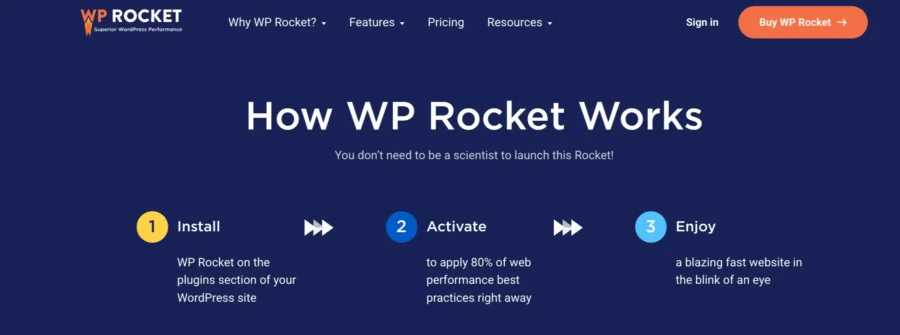
You can install it in less than 3 minutes and the default configuration of the WP Rocket plugin will boost your loading speed in no time.
It has the trust of over 1,989,000 websites and will definitely improves your website’s loading time also by:
- Page Caching
- Cache Preloading
- Browser Caching
- GZIP Compression
- eCommerce Optimization
- Excellent Compatibility
So it’s like a magic tool that you can use to make sure that your page stays relevant to readers and ranks higher on Google SERP.
What Is WordPress Caching And How Does It Work?
WordPress caching is a performance technique that makes your website load faster by saving a ready-to-use version of your pages and serving it to visitors instead of generating the page from scratch every time.
Let’s take a closer look at this in the section below.
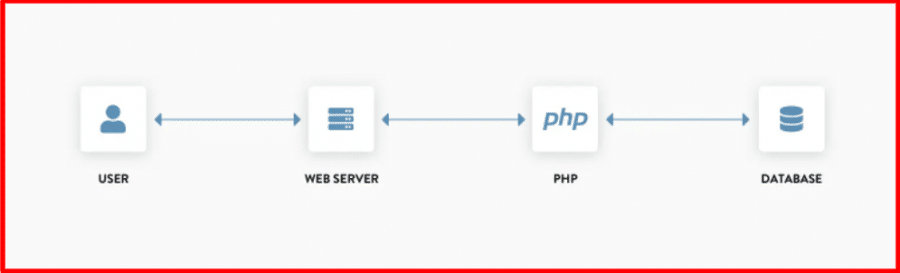
That means every time someone visits your site, WordPress:
- Talks to the database
- Fetches posts, images, settings
- Runs PHP code
- Builds the page
- Sends it to the browser
Caching is used to produce a static version of your site and its content to speed things up. Rather than being created dynamically from the server, the static content is shown each time when someone visits your site.
Visitors should see quicker loading speeds since the static version of the material takes less time to show because the number of queries to the server is limited.
However, slow loading isn’t always caused by your WordPress setup. ISP problems, DNS failures, CDN incidents and wider network disruptions can also affect connectivity. If you’re investigating slow internet today, checking current outage data can help determine whether the problem is local or part of a wider disruption.
How To Enable WordPress Caching?
WordPress caching can be activated in two ways:
- The cache function may be set by default when you begin installing WordPress on your site
- Or, you can manually add caching and other speed optimization features to your site using a caching plugin like WP Rocket and speed up your site in no time.
Can WP Rocket Really Improves The Performance Of A WordPress Website?
As we have discussed earlier, WP Rocket will help your website to load faster, but I know that many questions have arisen in your mind about what it is or how it works, whether you should use it, or if it hinders your website technically.
Without question, the WP Rocket plugin will definitely improve the performance of your website.
We tried this plugin on a variety of websites, including our own website “BloggerVoice“, and saw impressive results in terms of speed and efficiency.
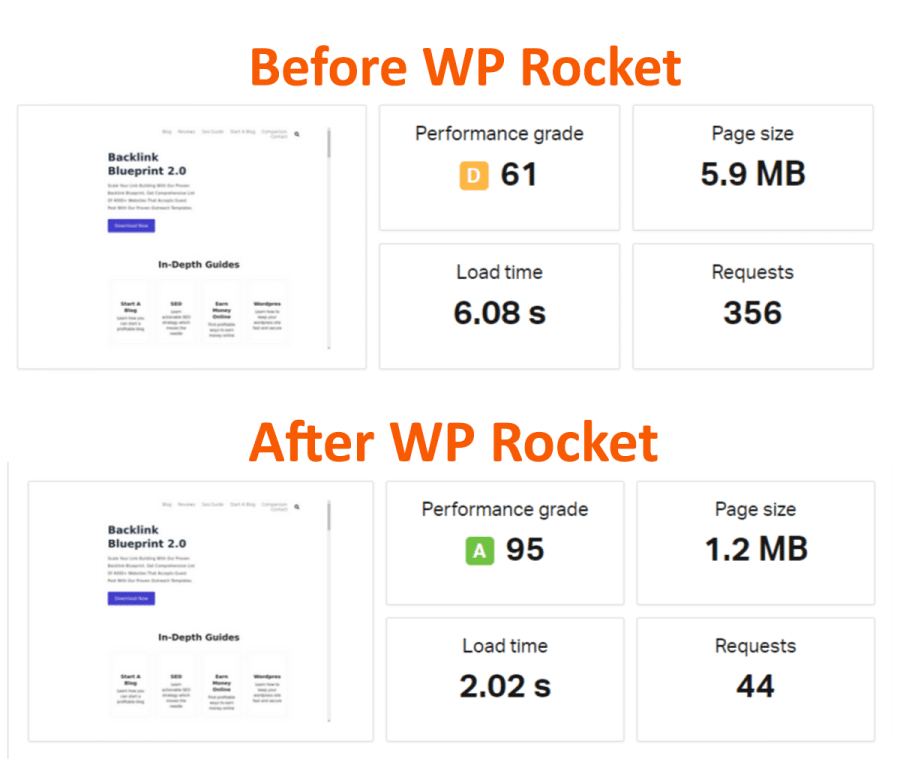
As you can see in the above figure, performance has improved from 61 to 95, page size has decreased from 5.9MB to 1.2MB, total load time has decreased from 6.08s to 2.02s, and server requests have decreased from 356 to 44.
What Are The Pros And Cons Of WP Rocket Plugin?
| Pros of WP Rocket Plugin | Cons Of WP Rocket Plugin |
|---|---|
| The platform is easy to use and has a simple interface. | The platform could also have a free version. |
| 80% of all features are automatically applied as soon as you install the platform. You do not need to configure the settings yourself. | The platform does not have built-in image optimization, for that you need to use other plugins like Imagify or ShortPixel. |
| It has all the caching features, including page and browser caching. | Although the initial set-up of the platform is easy, setting up the other advanced features may feel difficult for new users. |
| Supports both file and media optimization to support fast loading. | |
| Integrates with e-commerce websites like WooCommerce and Shopify. | |
| Has a 14-day money-back guarantee for all new users. |
How To Install WP Rocket Plugin?
Are you confused about how to install WP Rocket Plugin without encountering any WordPress errors then follow these simple steps to properly install and use WP Rocket Plugin on your WordPress website?
Step 1: Visit the WP Rocket plugin’s official website.
Step 2: Click on the Pricing button at the top of the homepage.
Step 3: Choose a plan that best suits your needs and number of websites, and click on the Buy WP Rocket Button.

Step 4: Add your email, name and credit card details and complete your payment by pressing the Place order button.
Step 5: Go to your WordPress dashboard and click on Plugins > Add New

Step 6: Click on Upload Plugin and then select the WP Rocket plugin that you have downloaded.

Step 7: Click on Install and Activate.
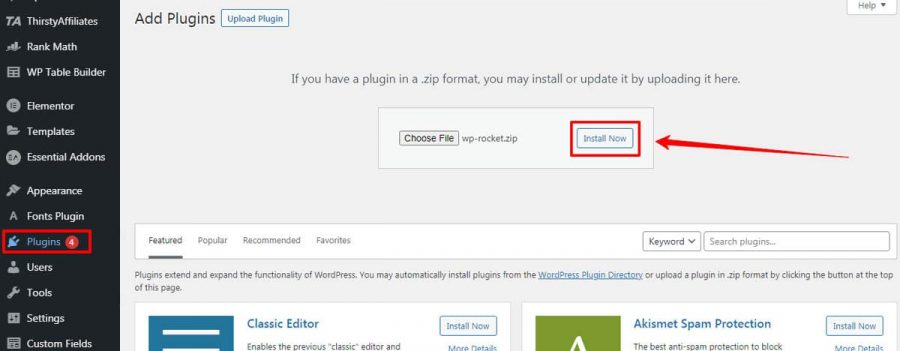
After successful installation, the plugin will boost your site speed with its default configuration
However, you can explore all the optimization options that WP Rocket Plugin offers and take your website speed to next level.
Below is a detailed explanation of the Optimizing Features of WP Rocket.
What Do You Need To Know About The WP Rocket Dashboard?
Before jumping into the amazing features of the WP Rocket Cache Plugin, let’s see how it looks like when installing it for the first time.
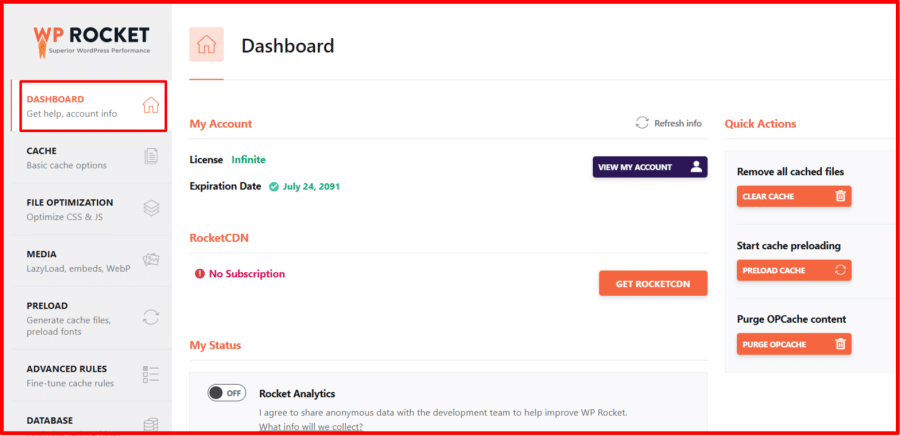
From the above image you can see that it has tons of features ready to boost your website performance, all you have to do is a few clicks and you are good to go.
Now, let’s look at each feature that WP Rocket Cache Plugin offers.
- Cache (Creates webpage cache)
- File Optimization (Compress & Combine HTML, CSS & JS files)
- Media (Converts WebP formats and enables Lazyload)
- Preload (It preloads the cache of your web pages)
- Advanced Rules (Define cache rules)
- Database Optimizer (Optimises your database)
- CDN (1 click to set up CDN)
What Are The Key WP Rocket Features and Plugin Settings?
WP Rocket comes with options that provide an instant boost to your website, let’s see how.
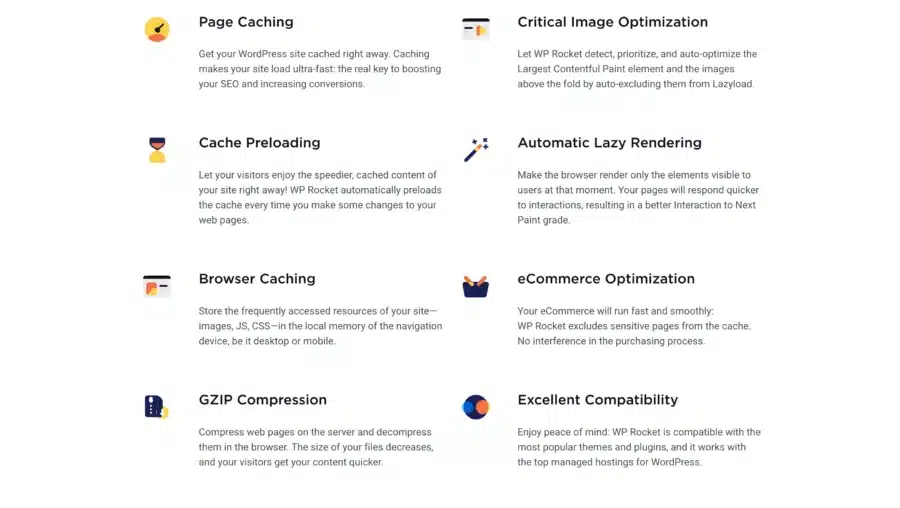
A. Page Cache
This is the core feature of the plugin that builds static HTML pages and loads them instantly.
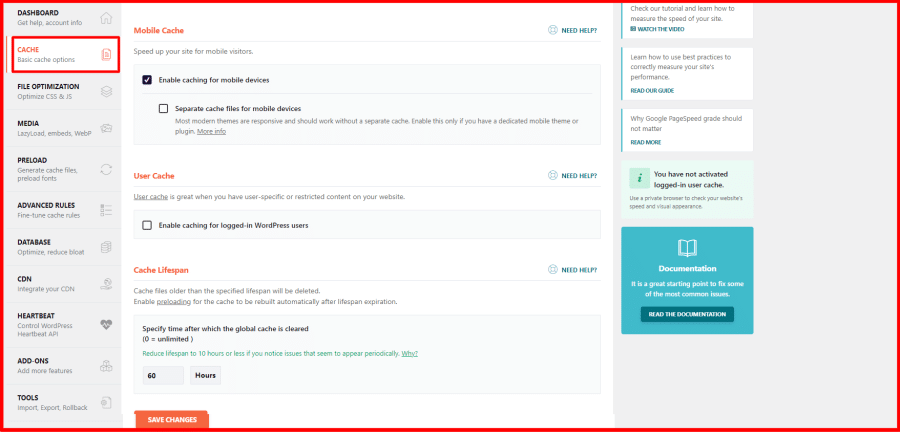
We all know that most of our visitors are mobile-based, so you also get mobile-optimized page caching on this platform.
But what does it mean for you? We all know that the loading speed is now an official ranking factor.
With this plugin, your website loads faster that really makes a difference.
B. Preloading
WP Rocket preloads your entire site cache whenever you publish or update content. What it actually does that it clears the cache for specific content whenever you make a change on your website.
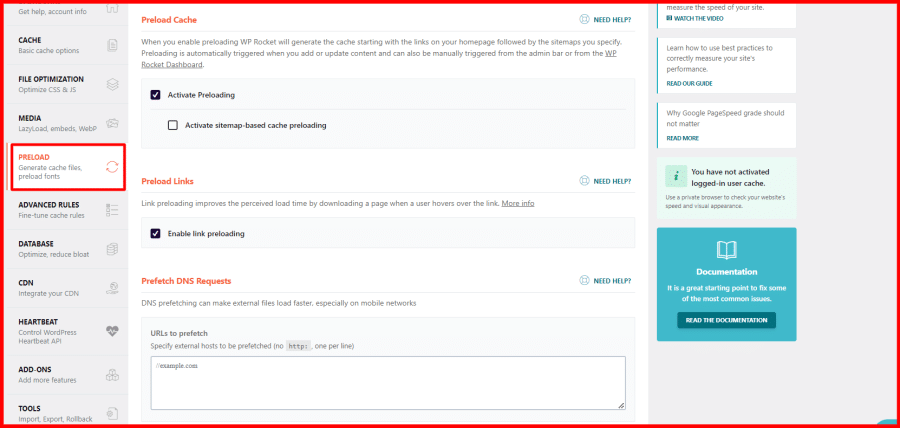
When you first install WP Rocket, “Activate Preloading” is enabled by default, which means that your homepage and any links found on it will be preloaded as soon as the plugin is activated, ensuring that your site is quick straight away.
C. Browser Caching
Browser caching works by identifying which pages, or sections of pages, require updating at different intervals. Your website’s logo, for example, is unlikely to be altered every day.
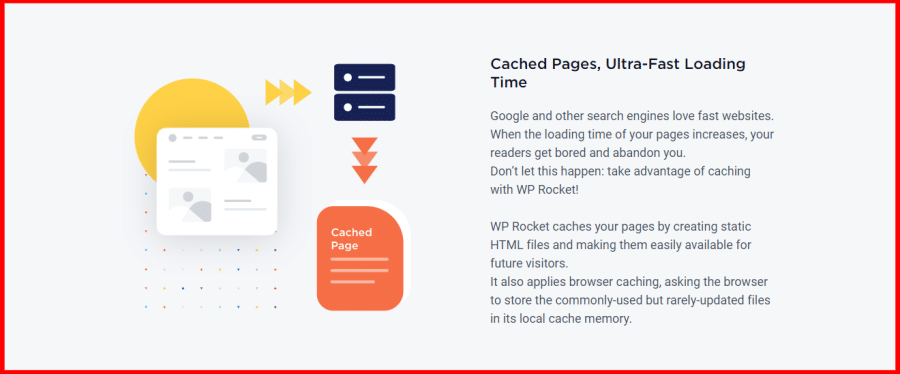
By instructing the browser to save these files rather than downloading them when you return, you save both your users’ time and your web server’s traffic.
All you have to do is install and activate WP Rocket to enable browser caching. WP Rocket will automatically edit your .htaccess file and set expiration lengths on certain sorts of files.
D. File Optimization
The loading time of a website depends on several factors and one such is the HTTP requests.
Here, in WP Rocket, you will get control to manage HTML, CSS, and JavaScript and this will help you to reduce the HTTP request.
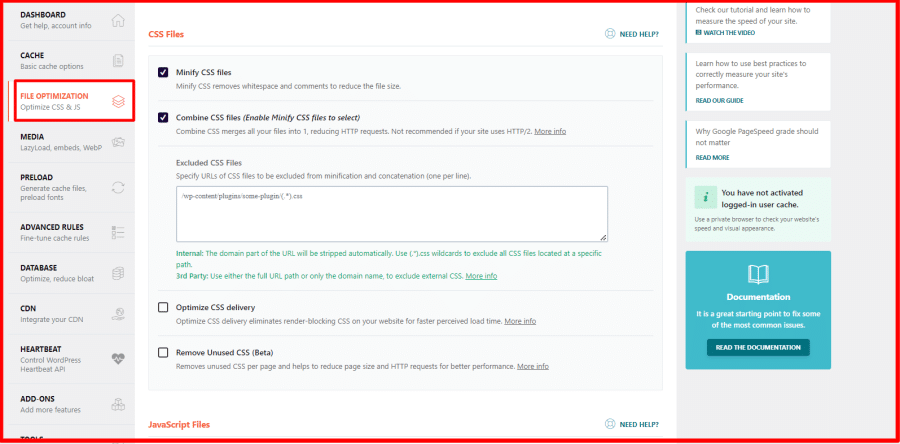
Once this task is done, then your website will be super fast.
Moreover, in WP Rocket, you will get the Database Management feature, and using the same, you can monitor your database and can also wipe the unnecessary files, such as trash, post-revision, comments, and many more.
E. GZIP Compression
Compression using GZIP is a common way to speed up WordPress. It can assist in minimise the total size of your pages when enabled on your site.
GZIP works on any website, whether it’s powered by WordPress or another CMS.
Let’s have a look at how it works:
- If it does, the server creates the web page’s HTML before applying GZIP compression.
- The stream is decompressed and displayed to the user when the browser receives it.
- When a server receives a web page request, it looks at the header to see if the browser supports GZIP compression.
- The webserver serves an uncompressed data stream if the browser does not support GZIP.
- GZIP compresses the markup and sends it to the browser as a compressed data stream.
F. Media Optimization
Images are an important part of every website as they make posts and pages more attractive to read, but they can quickly degrade your performance and PageSpeed score.
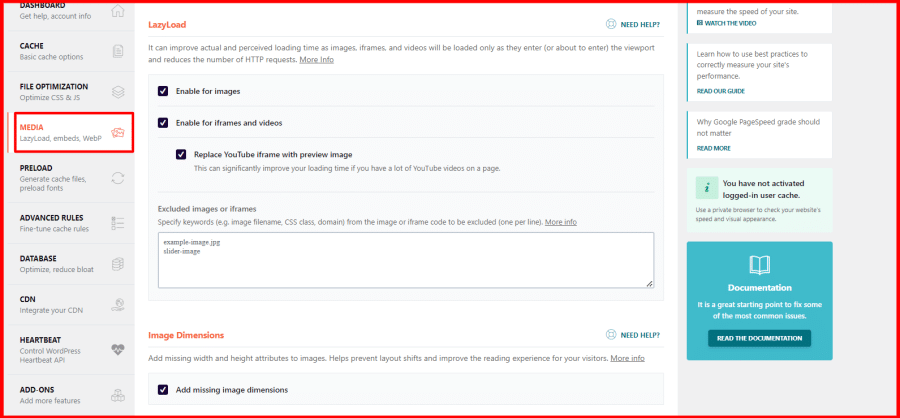
When it comes to online performance, Google is always ready to judge your actions, and you don’t want to disappoint it, right?
The picture dimensions, or how much screen space it takes up, are measured in pixels, and while they do not entirely determine file size, they are connected.
The larger the image dimensions, the larger the file size and it will take more loading time.
Imagify was developed by WP Media, the same firm as WP Rocket, is one of the most comprehensive image optimization plugins for WordPress.
G. Ecommerce Optimization
Page load time is a significant ranking element for WooCommerce websites, and let’s be honest, you won’t sell your things if you’re on page 5 of Google.
According to Hubspot,”Decreasing page load time raised conversions from 3% to 17%“. What does this imply in terms of monetary value?
Caching is a fantastic approach to making your WooCommerce store load faster. It’s the only thing you’ll need for a seamless and fast-loading eCommerce site, from the checkout page to product detail pages.
Caching boosts efficiency by minimizing time-consuming tasks such as retrieving all stored data or creating new copies for each visitor that requests the content.
H. Database Optimization
Your WordPress database acts as a filing cabinet for your website, storing all of your material, such as posts, pages, comments, revisions, and spam comments, as well as theme and plugin settings.
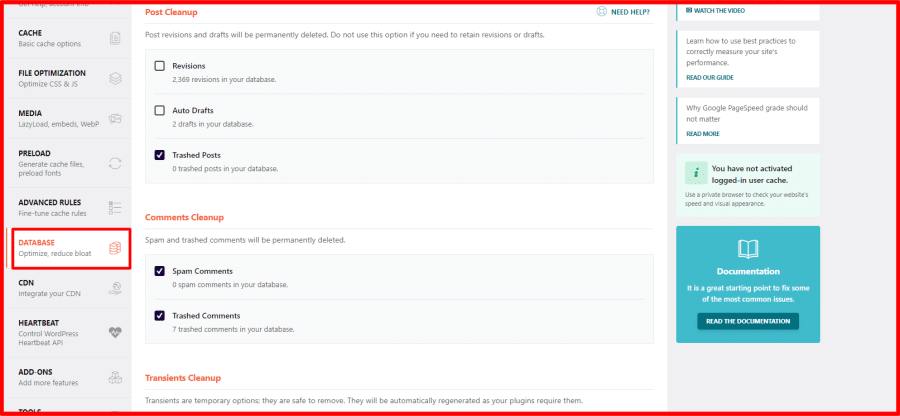
If you’ve been using WordPress for a time, your database is probably cluttered and full of tables you don’t need.
You can view how many tables are available to optimize on the WP Rocket dashboard. Posts, comments, transients, and database cleanup are among the five parts that allow you to clear up revisions, trashed posts, and transients, among other things.
There’s also an area where you may schedule automatic database cleanups to run daily, weekly, or monthly. You may also check Elementor Pro discount coupon if you want to upgrade your toolkit.
I. Hosting Compatibility
Nowadays, hosting companies have their own built-in caching technology, which speeds up page loading times. The degree of optimization is determined by the hosting providers and the caching technique they employ.
WP Rocket not only comes with a robust caching system, but also advanced features like an in-built CDN, lazy loading, WEBP image optimization, pre-loading, database optimization, and more.
As a result, installing it is still advantageous to the overall performance of your site.
J. Excellent Compatibility
WP Rocket is compatible with a wide range of themes and plugins which makes it more user-friendly.
It is also compatible with most of the top WordPress hosting providers.
The WP Rocket compatible web hosts are:
- DreamPress
- GoDaddy
- Flywheel
- Hostgator Managed WordPress
- Runcloud
- Savvii
- Siteground
- SpinupWP
- Synthesis
- WP Engine
- Kinsta
- Amazon Lightsail (Bitnami)
- WordPress.com
- Pressable
- RAIDBOXES
- Pantheon
K. WP Rocket CDN (Content Delivery Network)
CDN is a key feature that improves your site load time across the globe.

It generates a copy of your website and stores it on all major servers across the globe.
So that when a visitor comes to your site then the nearest server transfers the website files to the browser.
How Much Does WP Rocket Cost?
The platform currently offers three plans for its users.
- Single Plan: Priced at $59/year for 1 website.
- Plus Plan: Priced at $119/year for 3 websites.
- Multi Plan: Priced at $299/year for 50, $399/year for 100 websites, and $599/year for 500 websites.
If you own more than 500 websites, you can also contact the sales team to sign up for a custom plan according to your needs.
All plans on the platform come with free product updates and customer support. You also get a 14-day money-back guarantee with any plan, giving you the perfect opportunity to sign up to the platform and see your website metrics improve for yourself.
Is WP Rocket Worth The Money?
Of course, WP Rocket is totally worth it, as we actively use it on our website. As shown below, it has improved the loading speed of our Blogervoice website.
Speed Comparison Test
This is the performance score of my website on GTmetrix before I installed the WP Rocket plugin.

- GTmetrix Grade : C
- Performance : 61%
- Structure : 96%
- LCP : 2.5s
- TBT : 241ms
- CLS : 0.02
The performance score of my website after installing WP Rocket increased dramatically.

Below are the test result after installing the WP Rocket plugin.
- GTmetrix Grade: A
- Performance: 91%
- Structure: 96%
- LCP: 1.2s
- TBT: 202ms
- CLS: 0.02
I would say WP Rocket worked very well for my WordPress website. I noticed the difference in load time just after installing the plugin.
However tweaking some more settings in the WP Rocket plugin depending on the nature of your website, your website will load at blazing speed on both mobile and desktop.
If you want to listen to the stories of people boosting their WordPress websites using the WP Rocket plugin, then check out the below reviews.
Check out the below article which shows you how you can speed up your WordPress site using the WP Rocket plugin.
What Do Users Say About WP Rocket?
Let’s look at what experts are saying about WP Rocket Caching Plugin.
WP Rocket Website Review
eCommerce caching can be tricky, but WP Rocket makes it easy with built in comprehensive eCommerce caching rules. I recommend using WP Rocket to keep your Big Commerce for WordPress Store running as fas as possible by Topher DeRosia

WP Rocket Trustpilot Reviews
Here are some of the users sharing their thoughts on the Trustpilot website about the WP Rocket Caching Plugin.
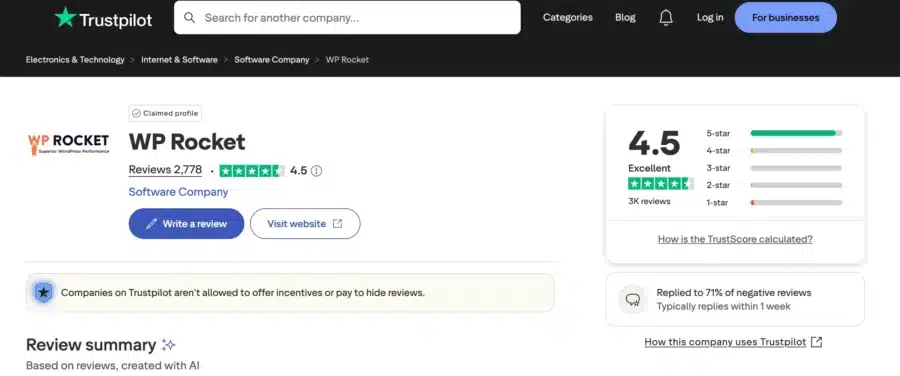
Simply the best caching plugin for WordPress, hands down. Streamlined, easy to configure, and makes a huge difference in page load times.
Sarah Schumacher
Exceptional product, first class support, you won’t find anything that makes your website faster!
Paul Stoakes
Absolutely fantastic. We’ve spent hundreds of hours trying to speed up our bloated WordPress sites and WP Rocket is 90% of the solution.
Why Use WP Rocket Instead Of Other Free Caching Plugin?
There are several reasons why I prefer WP Rocket over other free caching plugins, including the features that WP Rocket offers that are not available in most free caching plugins.
Let’s have a look at what the WP Rocket performance booster plugin can do for you.
1. Instant Results
There is no need to mess with the code; the default settings will take care of everything. Install it, turn it on, sit back and enjoy the increased speed.
WP Rocket uses 80 percent of web speed best practices by default (yes, even if you don’t enable any of the options) when you activate it.
2. Great Compatibilities
You can keep using this plugin without worrying about compatibility issues. Top managed WordPress hosting providers like WP Engine, Kinsta, and Pressable all allow WP Rocket as one of the few caching plugins that works well within their hosting setups.
That matters because many managed hosts place limits on caching tools to avoid conflicts, slowdowns, or broken site behavior. WP Rocket manages to stay on the safe list, which says a lot about how well it works in real-world WordPress environments.
If you are building or speeding up a WordPress site and also comparing hosting options, checking a 53% off WP Engine discount promo can help you save while pairing WP Rocket with a host that already supports strong performance out of the box.
3. Super Add Ons
WP Rocket Add ons enable you to instantly communicate with third party services. They are fantastic for quickly expanding the available WP Rocket options like:
• Cloudflare integration
• Sucuri integration
• Varnish Cache
If you are looking for a hosted website solution, don’t miss our Elementor Cloud review, it pairs well with Crocoblock widgets.
Conclusion
WP Rocket is a powerful caching tool for WordPress websites that will not only make your websites faster but can also help you to optimize your files and data to decrease server loads.
It will not only increase your page speeds but also make your rank higher on Google SERP. You can sign up to the platform for 14 days with a 100% refund policy to try out the features for yourself and see the difference in your website rankings as well.
Frequently Asked Questions
Do I need Cloudflare and WP Rocket?
Cloudflare and WP Rocket are completely compatible and complement. In most circumstances, using our Cloudflare add-on is a convenience rather than a need. Whether or not you use the WP Rocket add-on, your Cloudflare account will be active for your site after you’ve set it up correctly.
Is WP Rocket compatible with Elementor?
For performance, this is the single most significant WP Rocket feature. It works well with Elementor and Elementor Pro right out of the box.
Is WP Rocket free?
No, the platform does not currently have a free plan, but you can download and install the plugin with a 14-day money-back guarantee to try out the features before you get started for free.
